Load Profiles
Load profiles are an extremely useful tool to control and customization the way your loads behave. With load profiles, you have the power to shape and standardize the behaviour of your devices like never before. Whether it's optimizing lighting, automating device power (like turning a camera or a USB charger on/off), or fine-tuning dimming schedules, load profiles provide unparalleled flexibility and convenience. Seamlessly adapt your load's behavior to match your needs and preferences effortlessly. Revolutionize your load management experience and elevate your control to new heights with our cutting-edge load profile solutions.
ℹ️ Only applicable to systems typically with a light, motion detector, dimmer etc. Typically applies to Illumient systems. Only people with those types of systems will have access to this feature.
Accessing profiles
How to create a profile
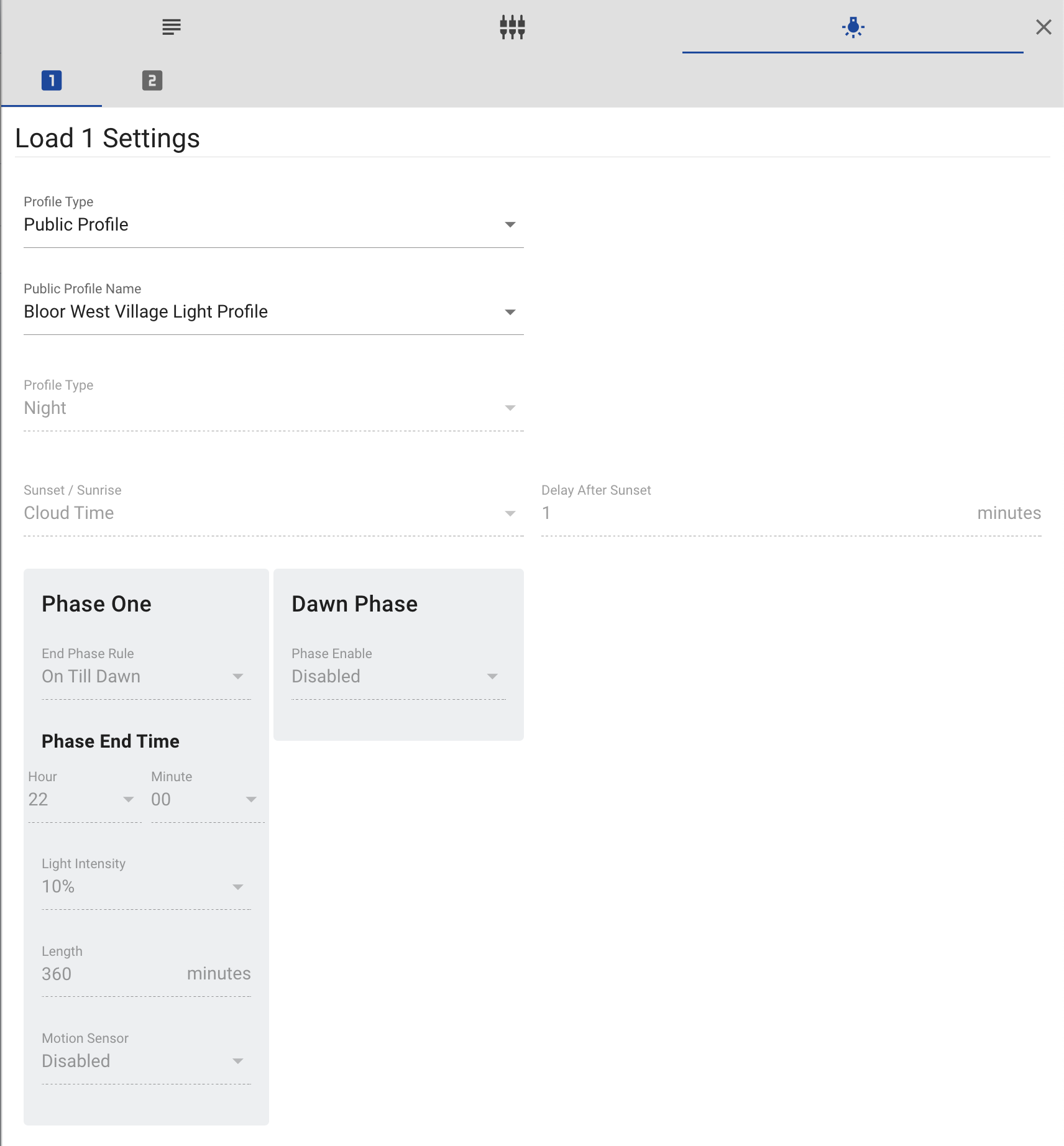
Creating a new public profile is straightforward. Just select the [+] option from the top bar. Within the controller settings, you have the ability to choose the desired profile for your system. If you opt for the "Public Profile" option under Profile Type, you can select one of your pre-made profiles from a dropdown menu. On the other hand, selecting "Custom" enables you to create a unique profile specifically tailored to that particular controller.
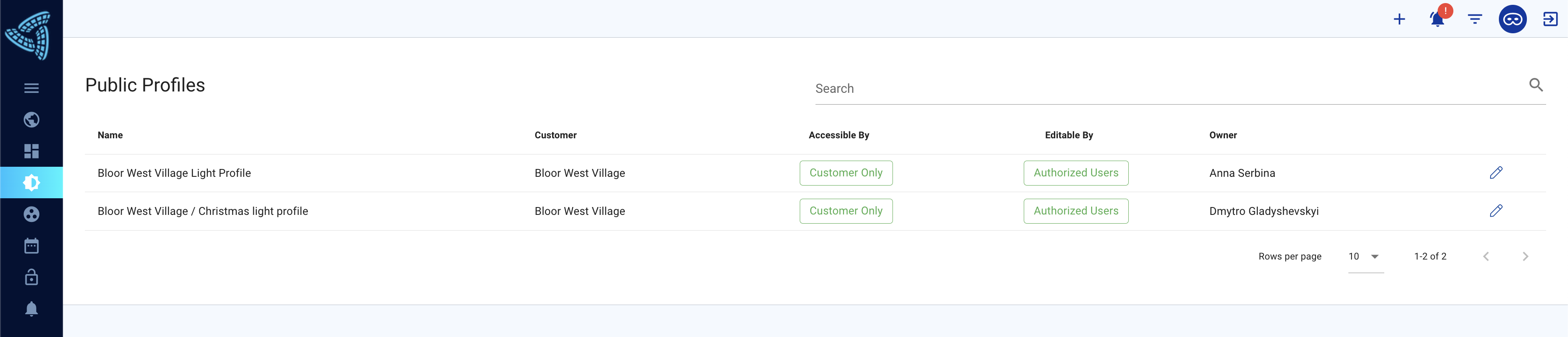
Public profiles are versatile and can be used across multiple systems, while custom profiles are specific to a single system. If multiple systems are currently using a public profile, any updates made to that profile will be applied to all those systems simultaneously. To access your public profiles, simply navigate to the left menu and select the sun icon called Public Profiles. Clicking on the pencil icon allows you to edit the settings of the public profile. Public profiles serve as a convenient way to save load configurations.
Whether you are making a custom profile or a public profile, the steps are the same:
- Select a profile type, either Night or Day. Day profile turns the load on during the day while Night profile turns the load on during the night.
Depending on which one you pick, the next steps will differ:
Night Profile
-
Configure sunrise/sunset field. This allows you to decide how and when the load will turn on/off.
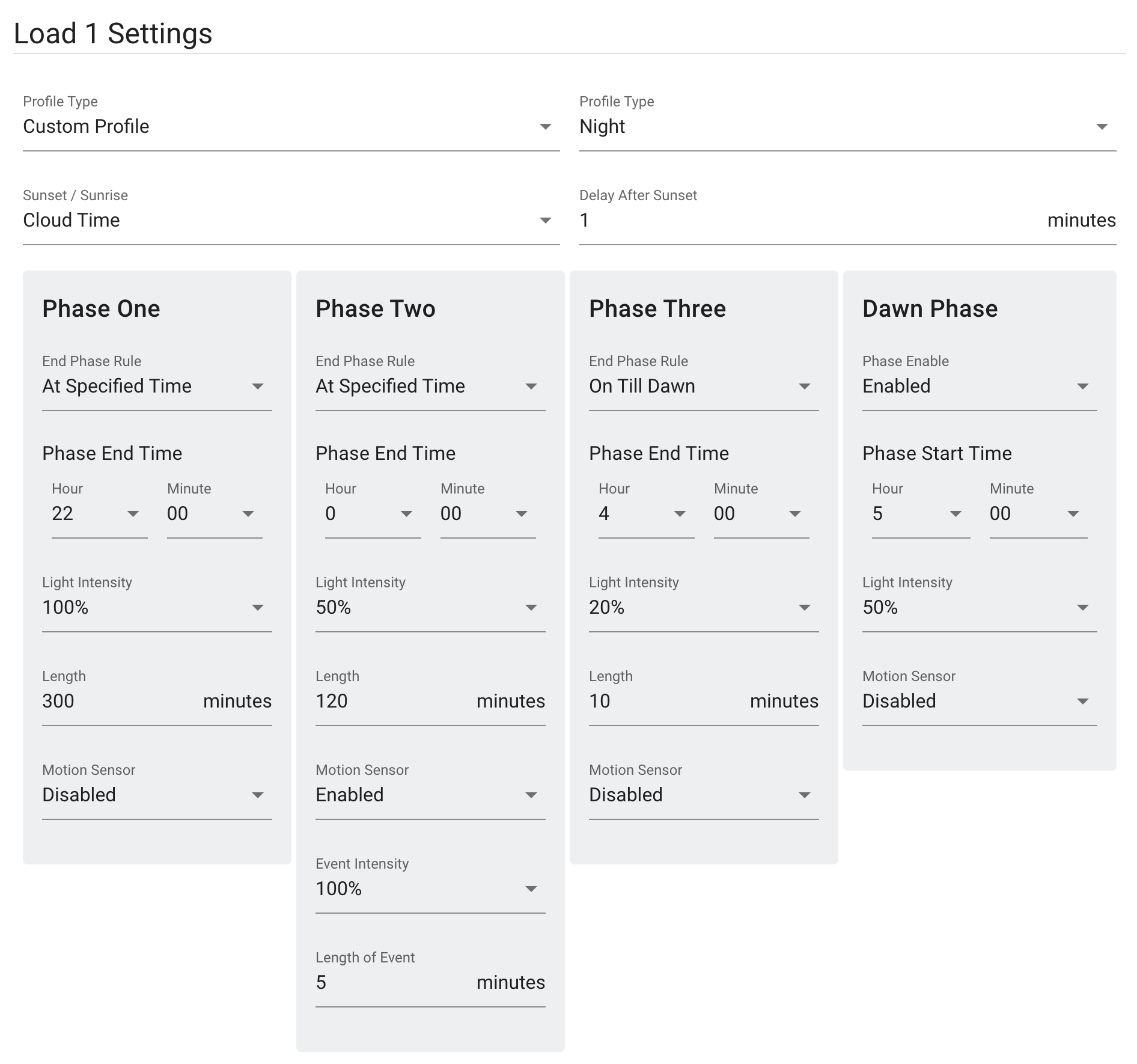
- Cloud Time (recommended). This method relies on Clear Blue's cloud to determine the sunrise/sunset times to start the load profile, end the load profile and, through the "phase end time" filed, then determines when each phase ends. When the system is offline and it does not know the exact time, it will automatically switch to the Sun Sense - Length Event. The Phase Length will identify how long the light stays ON/OFF for each Phase. This will remain the case until the system is back online.
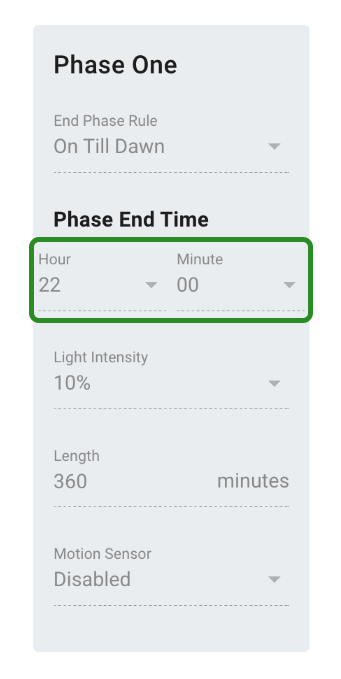
- Sun Sense - Time Events. With Sun-Sense profiles, the time of day (daytime or nighttime) is determined by the voltage of the solar panel. This can be useful for systems that constantly experience cloudy weather. This information is then used to establish the start or end time of the profile. The "phase end time" then determines when each phase starts. This is configurable for each phase. If this is selected then the "length" is not used.
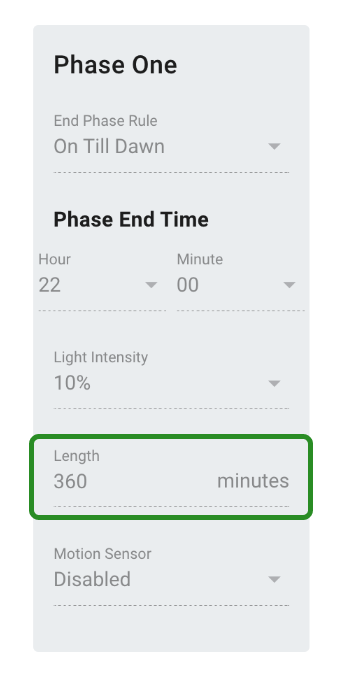
- Sun Sense - Length Events. Similar to Sun Sense - Time Events, it relies on the voltage of the solar panel to determine the time of day which is used to start or end the profile. This can be useful when the systems connection to the cloud is not reliable. The "length" then determines how long the phase will last. This is configurable for each stage. If this is selected then the "phase end time" isn't used.
-
Decide how long after sunset you want the profile to start with "Delay After Sunset".
-
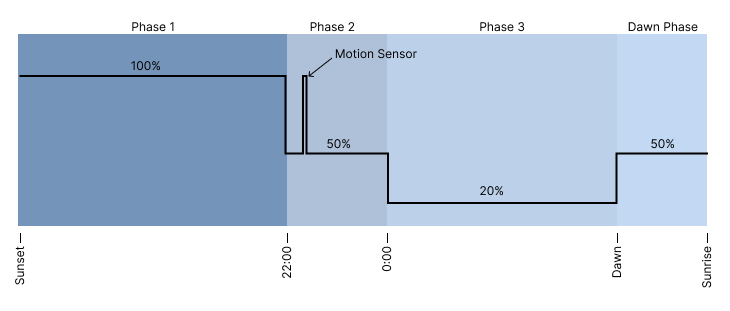
Determine the phases of the load profile.
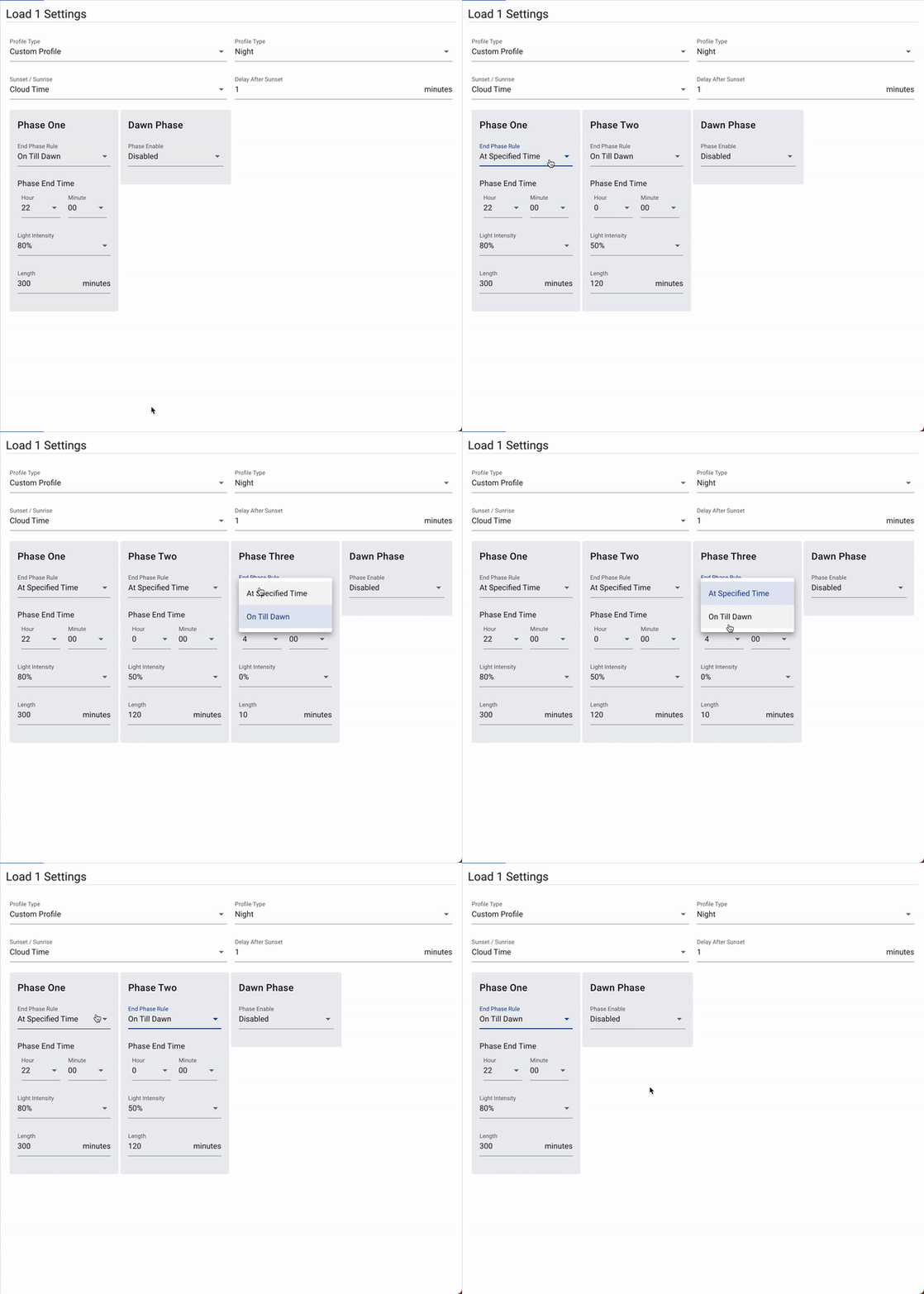
a) You have the option to set up to three phases, and for each phase, you must specify the "End Phase Rule." The "At Specified Time" option uses either the phase end time or the length (based on the selection made in step 2) to determine when the phase should end. If desired, additional phases can be added until a maximum of three phases is reached. The "On Till Dawn" option will continue that phase until dawn.
b) Then the intensity of the light can be picked. If your light doesn't have dimming capabilities then this field will not do anything.
c) If you have selected Cloud Time then there will also be a Dawn Phase option. Dawn Phase allows you to specify what the profile should do between dawn and sunrise.
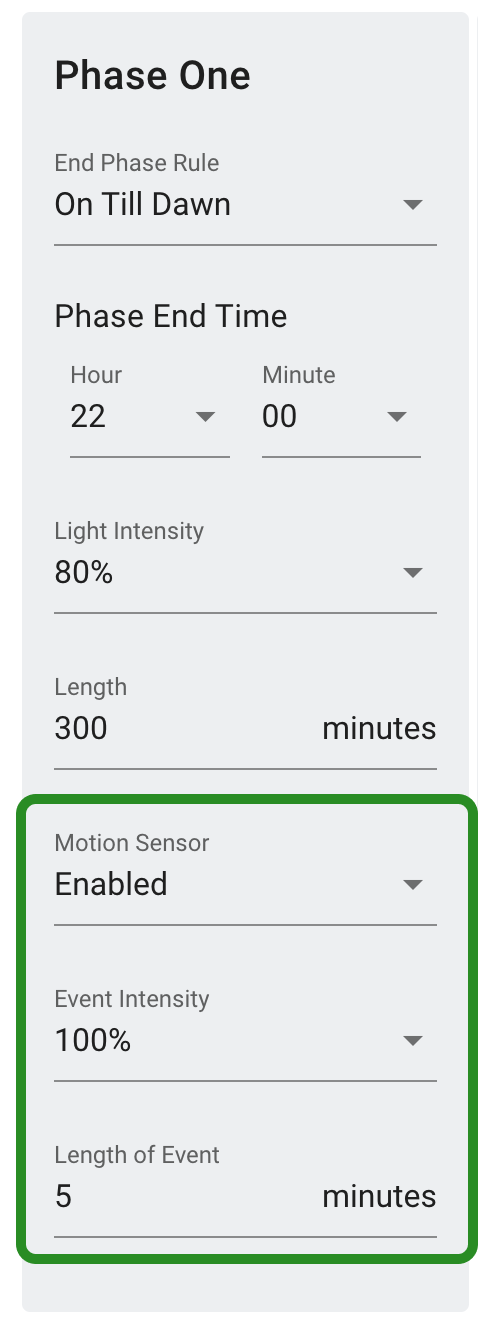
d) Lastly, for systems equipped with a motion sensor, each phase provides configuration options for customizing the behavior of your lights when motion is detected. You have the flexibility to enable or disable the motion sensor for each phase. If enabled, you can specify the desired light intensity when motion is sensed, as well as the duration for which the light should stay on after motion is detected. These customizable settings allow you to tailor the response of your lights to motion according to your preferences and requirements.
Day Profile
-
Configure sunrise/sunset field. This allows you to decide how and when the load will turn on/off. The options are
- Cloud time/cloud generated uses the sunrise/sunset time the controller receives from the cloud to decide when the load should turn on/off
- Custom allows you to pick the time the load should turn on/off.
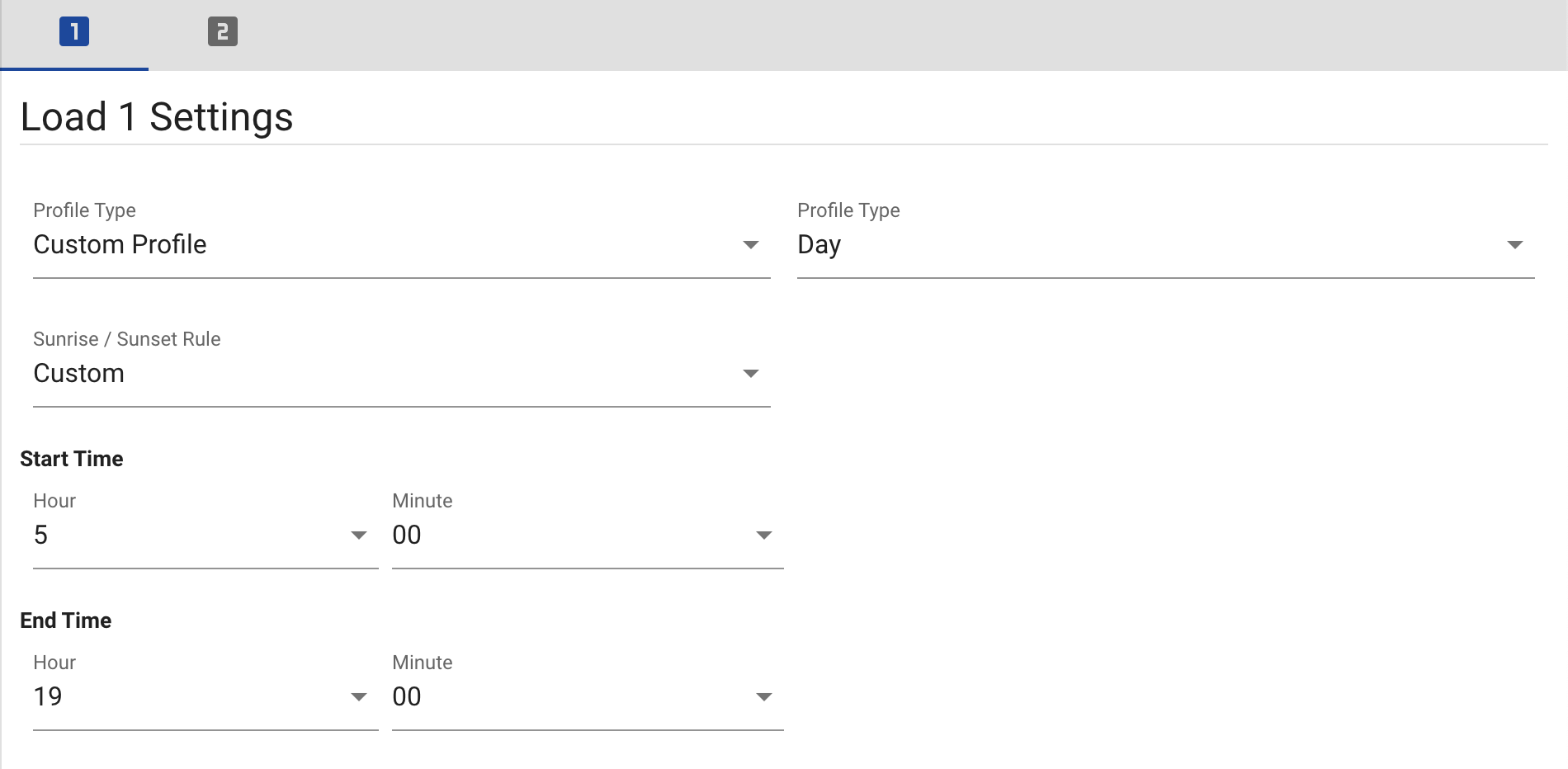
- Sun Sense uses the solar voltage to determine when the load should turn on/off. If sun is detected, it will turn on.
Example Night Profile
Profile
Load Behaviour