
Alarms
Creating an Alarm
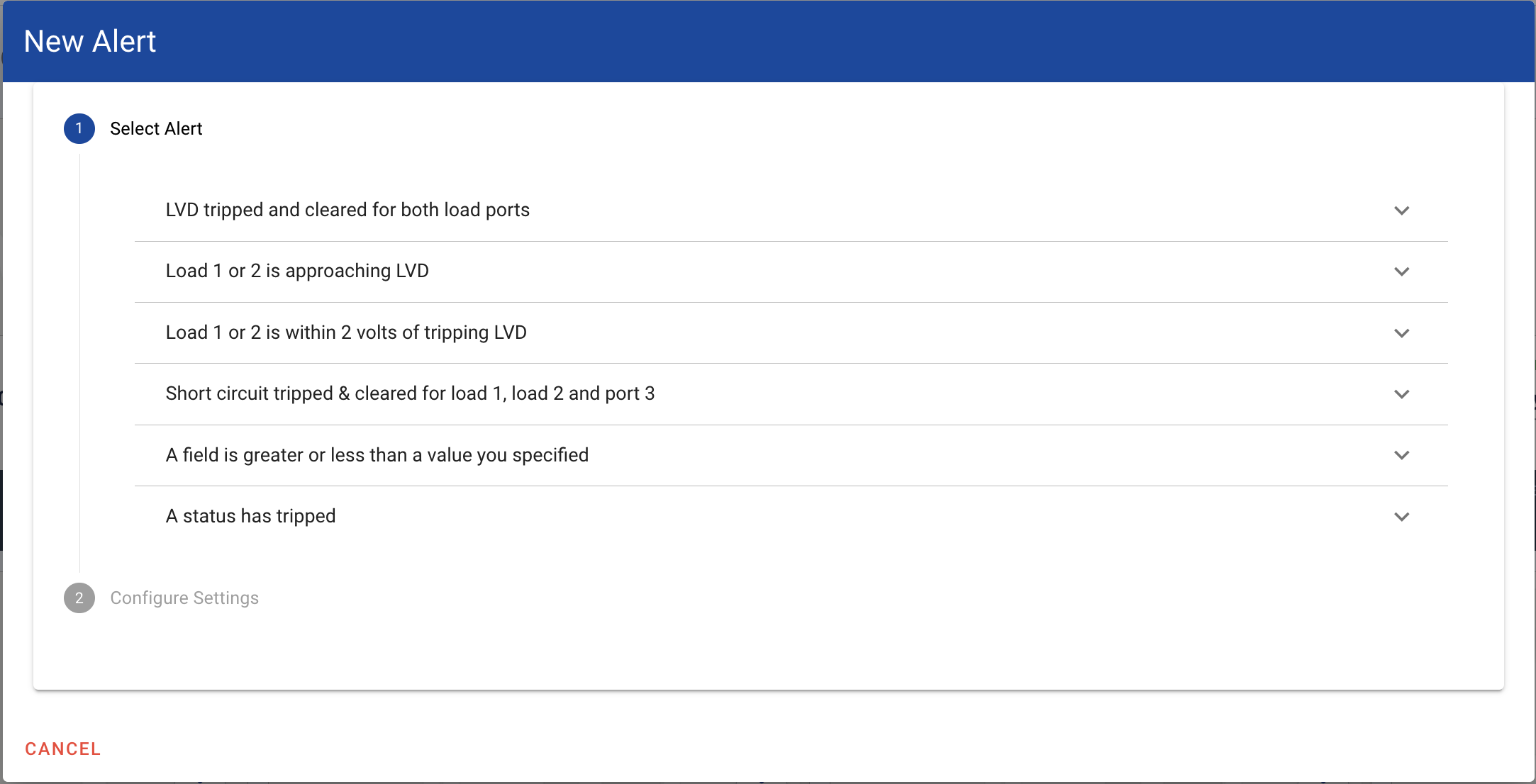
To set up alerts, click on the [+] on the top bar and click on New Alert.
Once you are there, each user can create alerts for their systems individually or as a whole. These alerts are designed to notify you of a potential issue before it happens, allowing you to avert an issue before it occurs. Notifications can be delivered by E-mail or online via Illumience. All statuses and ports can have customized alerts based upon rules defined by the user. Notification frequency can also be controlled. As trouble tickets are cleared, alerts will be turned off. However, you can see if an alert is still active on the Dashboard page under the “Status” column.
Alert Control Centre
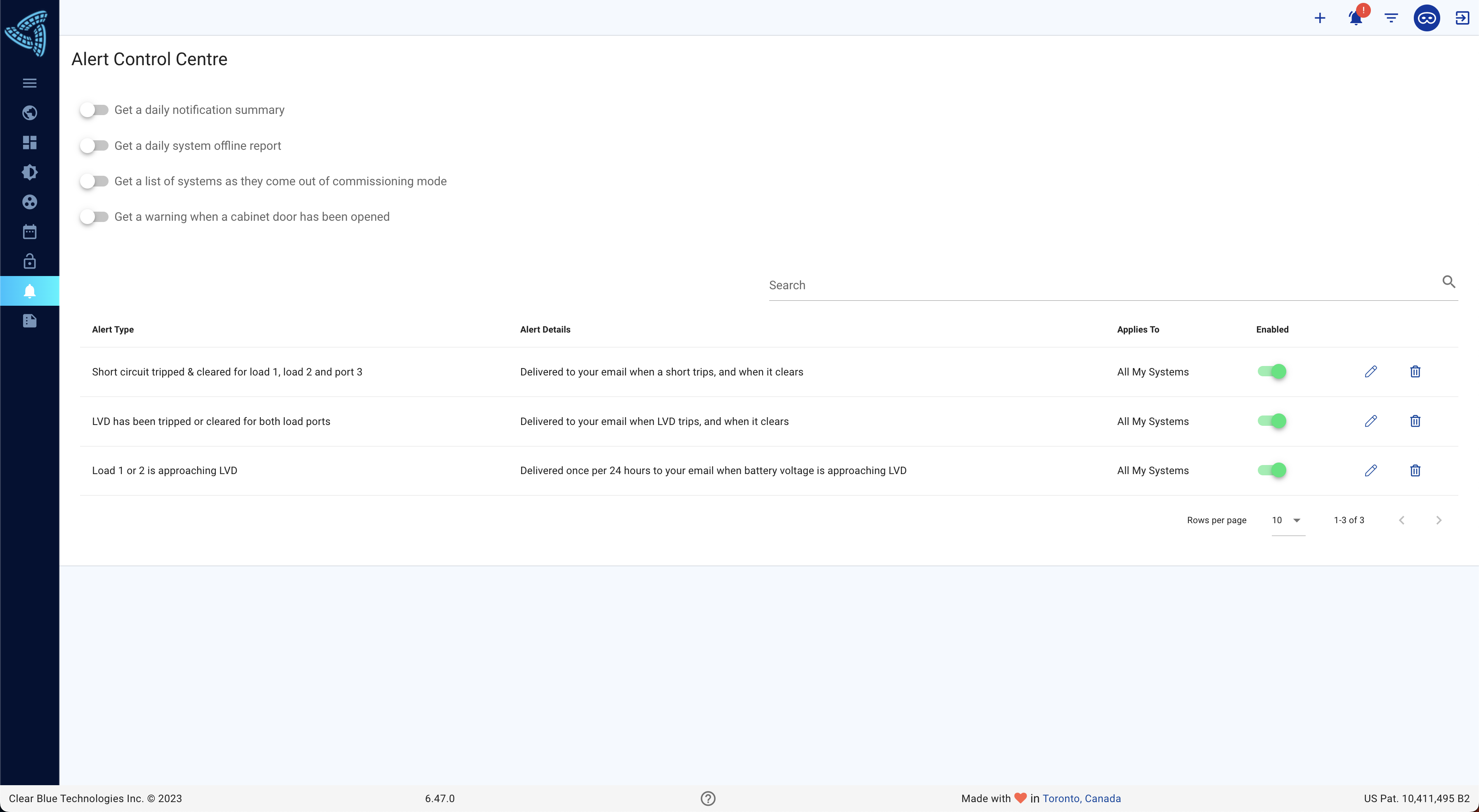
To view a list of all the Alerts you created, you can go to the Alert Control Center by clicking on the Alarm Bell icon on the left column. You can manage all the Alerts you have created from this panel.
If you have multiple systems and would like to just receive a summary of all Alerts, you can toggle the “Get a daily notification summary.” This will provide you with a daily e-mail outlining which alerts were triggered throughout the previous day. You can hover your email over each option and get a description as to what each option does, as shown below.
Once this is toggled, edit the alerts you would like to include in the daily summary. From there check off the option “Only include this alert in your daily summary”.
ℹ️ Create a group to configure alarms for groups of systems at a time. This can be easier when you have many systems to monitor.